The Project Results feature allows CES Administrator, Administrator, Instructor and Teaching Assistant roles to navigate results and access and generate reports for specific projects. CES Administrators, Administrators, Instructors and Teaching Assistant roles can access project results by course section within Project Results.
- Click on the Results tab.
- Select Project Results.
- Select the project from the project results list.
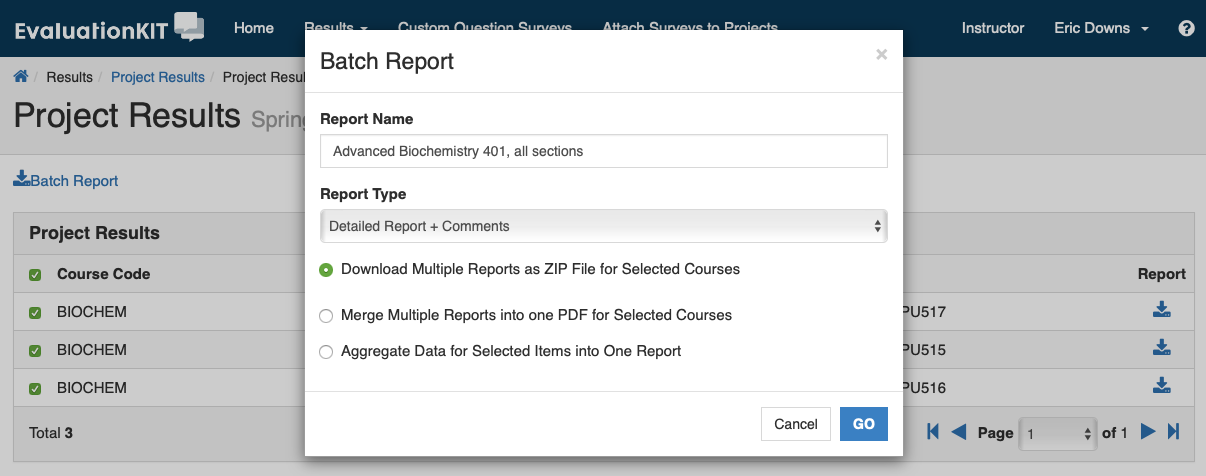
- To view an individual course section report, click on the Report icon by course information.
- Select the desired report format - depending on the report types made available by your CES Administrator, choose from:
- Detailed Report: A quantitative report without write-in comments in PDF format.
- Detailed Report + Comments: A quantitative report including write-in comments in PDF format.
- Short Report: A condensed, quantitative report without write-in questions in PDF format.
- Short Report + Comments: A condensed, quantitative report including write-in comments in PDF format.
- Raw Data file in Excel format.
Batch Report
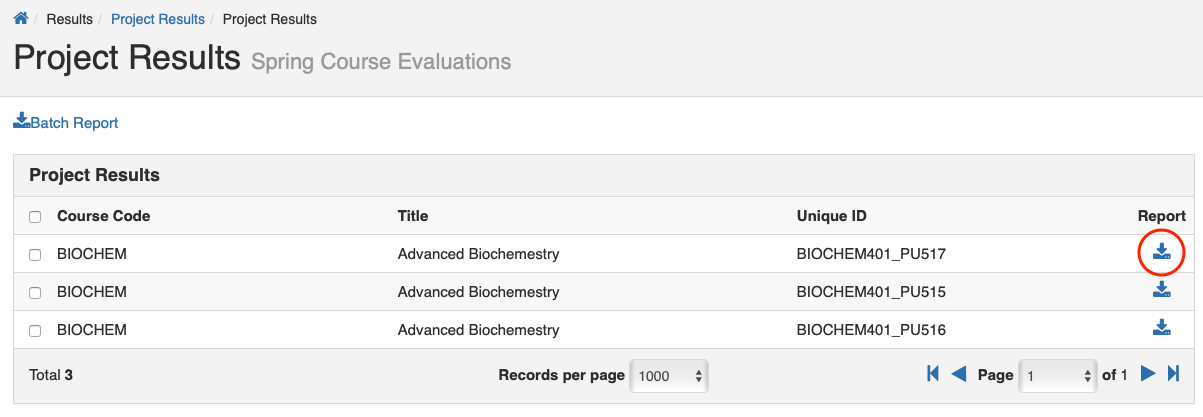
To generate a batch report, select more than one course section and click on Batch Report.
- Name the batch report.
- Select one of the following options:
- Merge Multiple Detailed Reports into one PDF for Selected Courses: Individual course section reports will be compiled into a single PDF report. Data is not aggregated.
- Download Multiple Detailed Reports/Batch as ZIP File for Selected Courses: Course section reports will be downloaded as individual PDF files into a single ZIP file. Data is not aggregated.
- Aggregate Data for Selected Items into One Report: Results for all selected course sections will be aggregated into one single PDF report.
- Raw Data: Course section reports will be downloaded as individual Excel files into a single ZIP file. Data is not aggregated.
- Select the desired report format - depending on the report types made available by your CES Administrator, choose from:Detailed Report: A quantitative report without write-in comments in PDF format.
- Detailed Report + Comments: A quantitative report including write-in comments in PDF format.
- Short Report: A condensed, quantitative report without write-in questions in PDF format.
- Short Report + Comments: A condensed, quantitative report including write-in comments in PDF format.
- Click GO.